Long/Short Position Tools
Master OptionTrigger's enhanced Long and Short position tools for visual trade planning with entry circles, TP/SL lines, and option prices
OptionTrigger enhances TradingView's native Long and Short position tools with powerful options trading features. This guide covers everything you need to know about using these enhanced tools.
What's Enhanced: OptionTrigger adds entry circles, real-time option prices, multi-level take profits, and one-click order placement to TradingView's position tools.
Overview
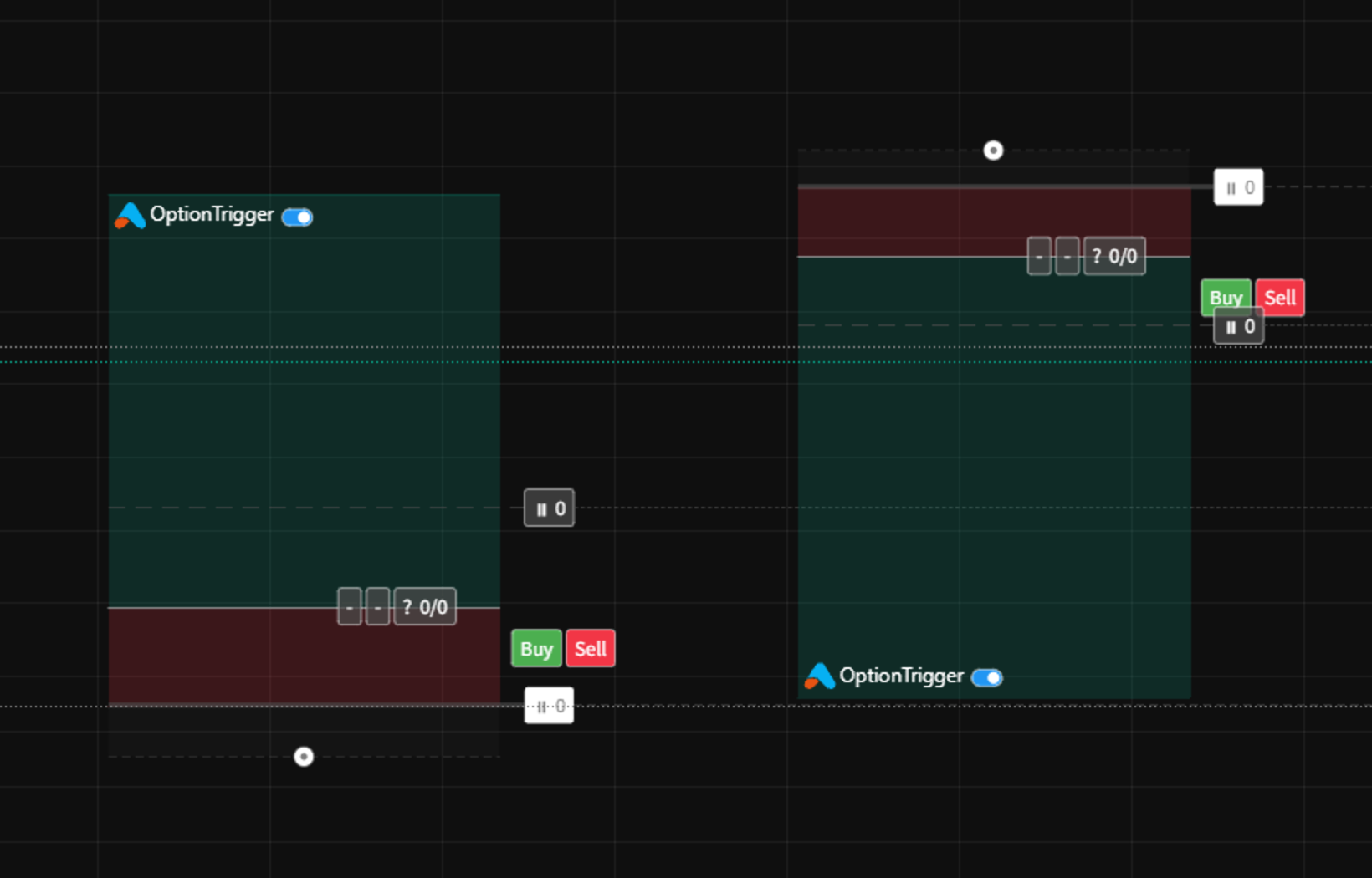
The Long and Short position tools are your primary interface for planning trades in OptionTrigger:
| Tool | Use Case | Option Type |
|---|---|---|
| Long Position | Bullish trades - expecting price to rise | Calls |
| Short Position | Bearish trades - expecting price to fall | Puts |
Creating a Position Tool
Select the Tool
In TradingView's left toolbar, click and hold the position tool icon to reveal the dropdown. Select Long Position or Short Position.
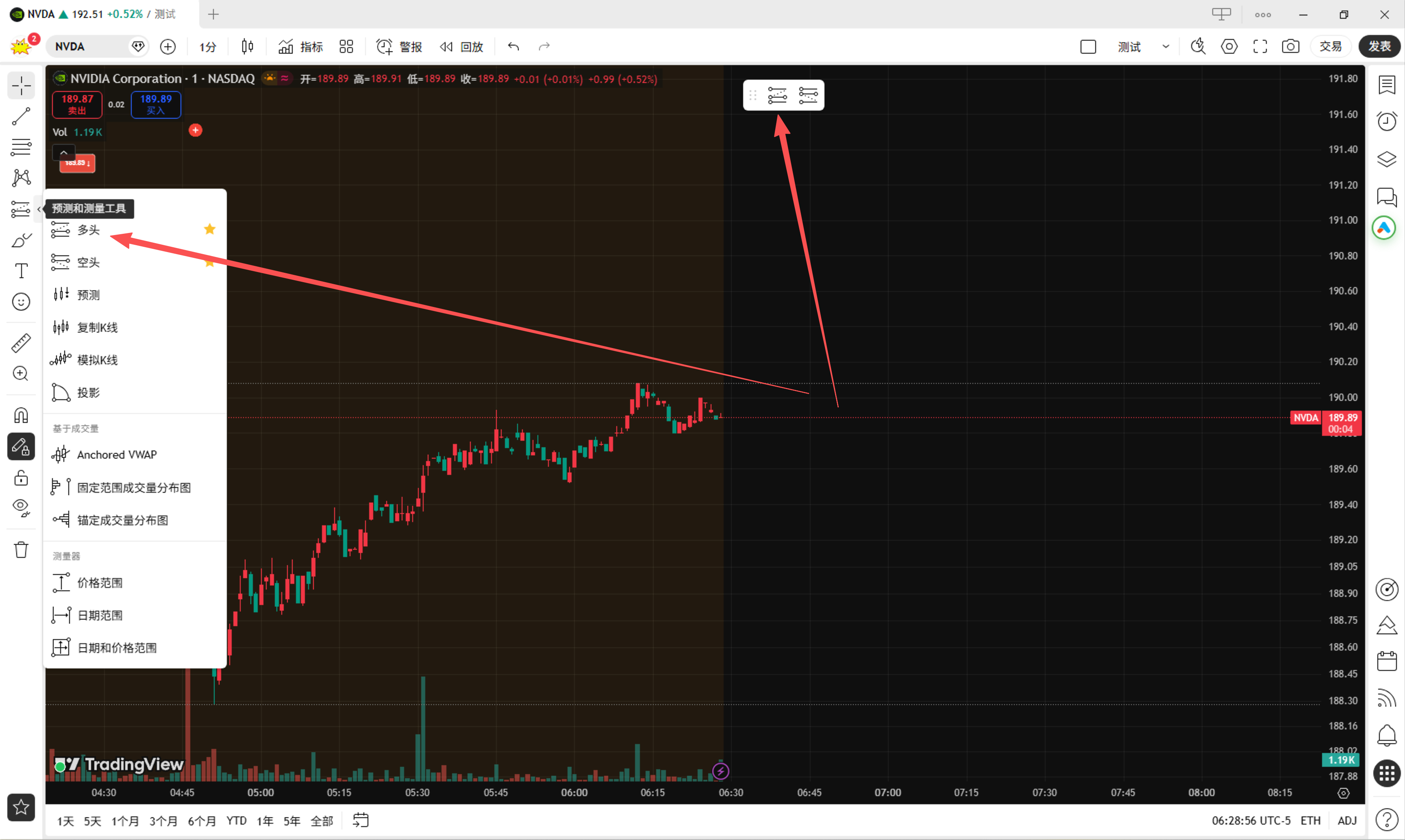
Keyboard Shortcut: Use TradingView's built-in shortcut (click on the chart and press a key to check available shortcuts).
Draw on Chart
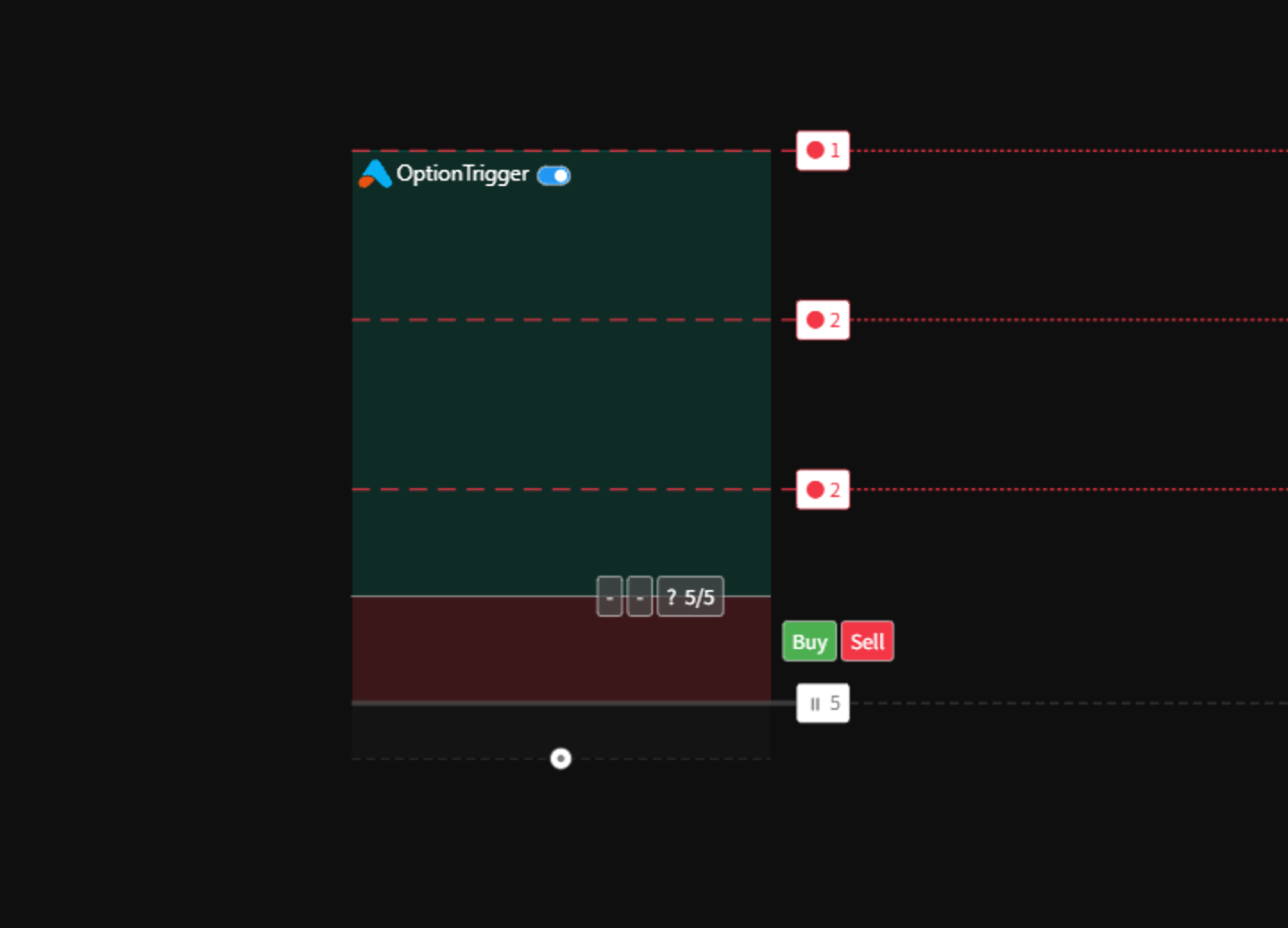
Click on the chart where you want to enter the trade. This sets your entry price. Then drag up (for Long) or down (for Short) to set your initial take profit level.
Adjust Stop Loss
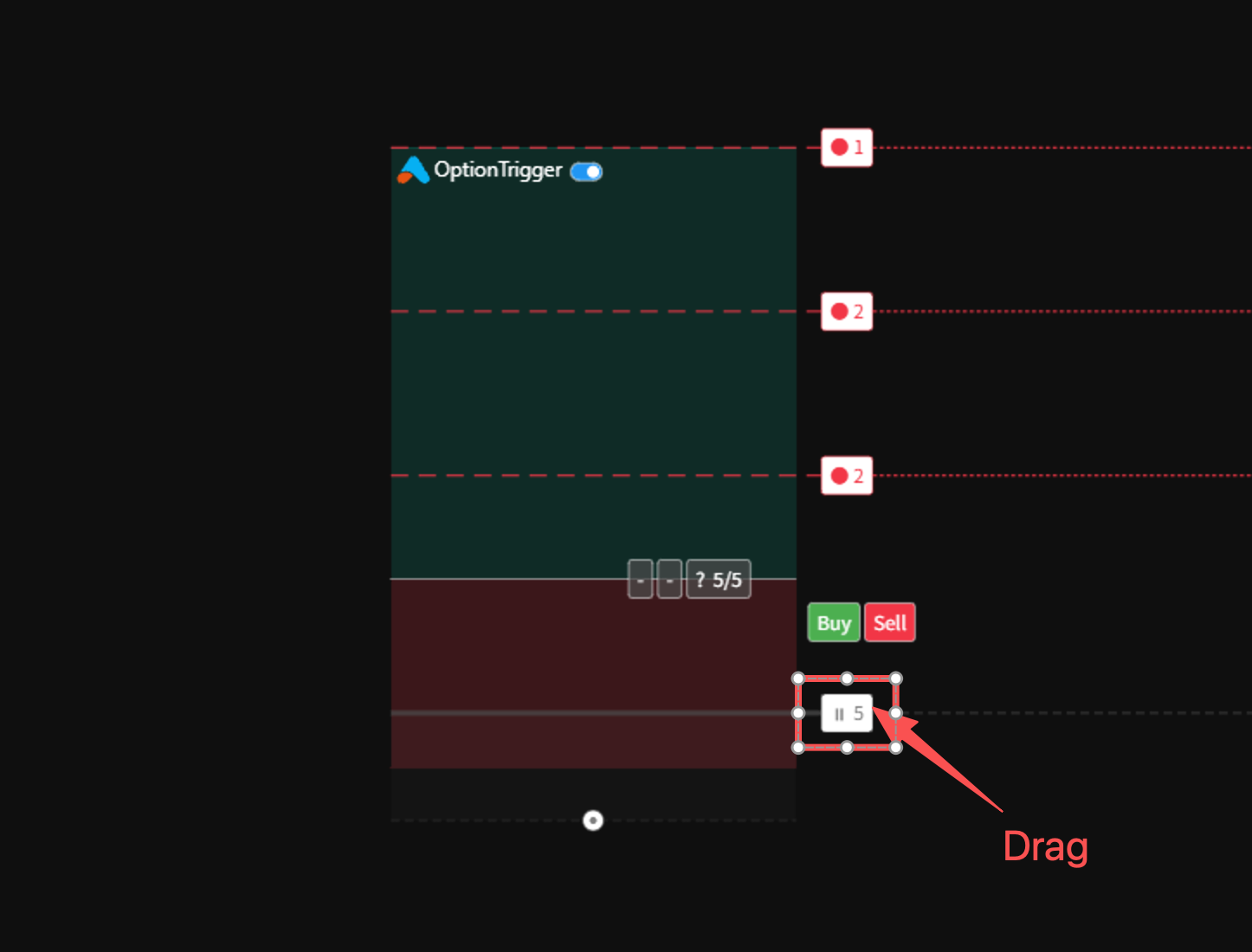
Drag the stop loss line to your desired level. The tool automatically calculates your risk/reward ratio.
OptionTrigger Enhancements
When OptionTrigger is active, the position tools gain several powerful features:
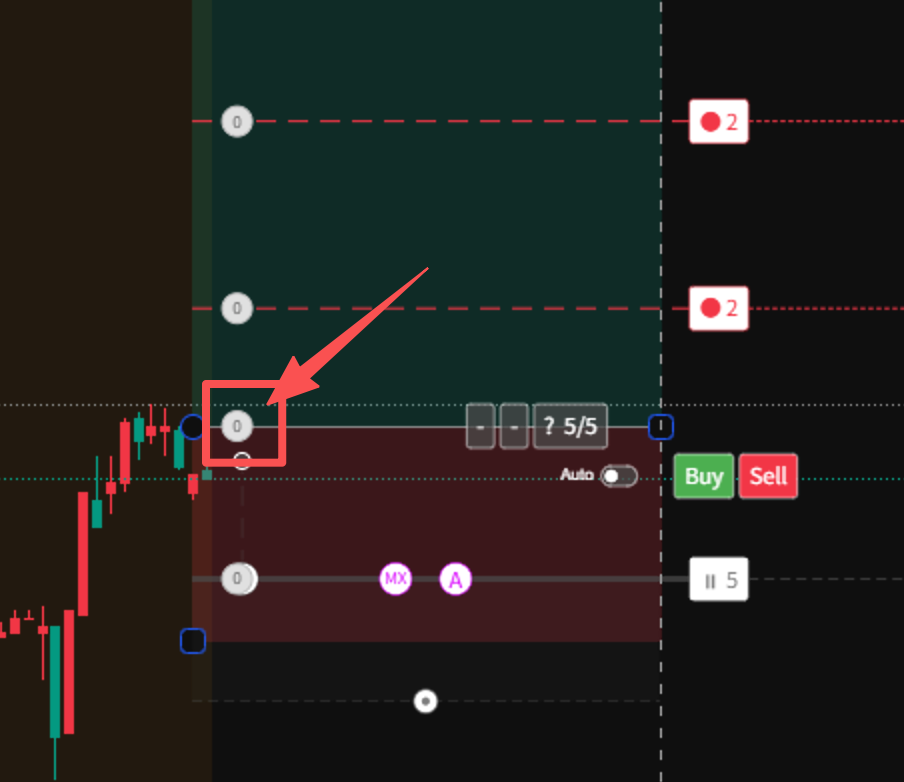
Entry Position Label
The entry point displays with an interactive label that provides:
- Entry price display
- Option contract details (expiration, strike)
- Position size input
- Buy/Sell buttons
Real-Time Option Prices
Each level (entry, TP, SL) shows the corresponding option price:
- Entry: Current option premium
- Take Profit: Option price at TP level
- Stop Loss: Option price at SL level
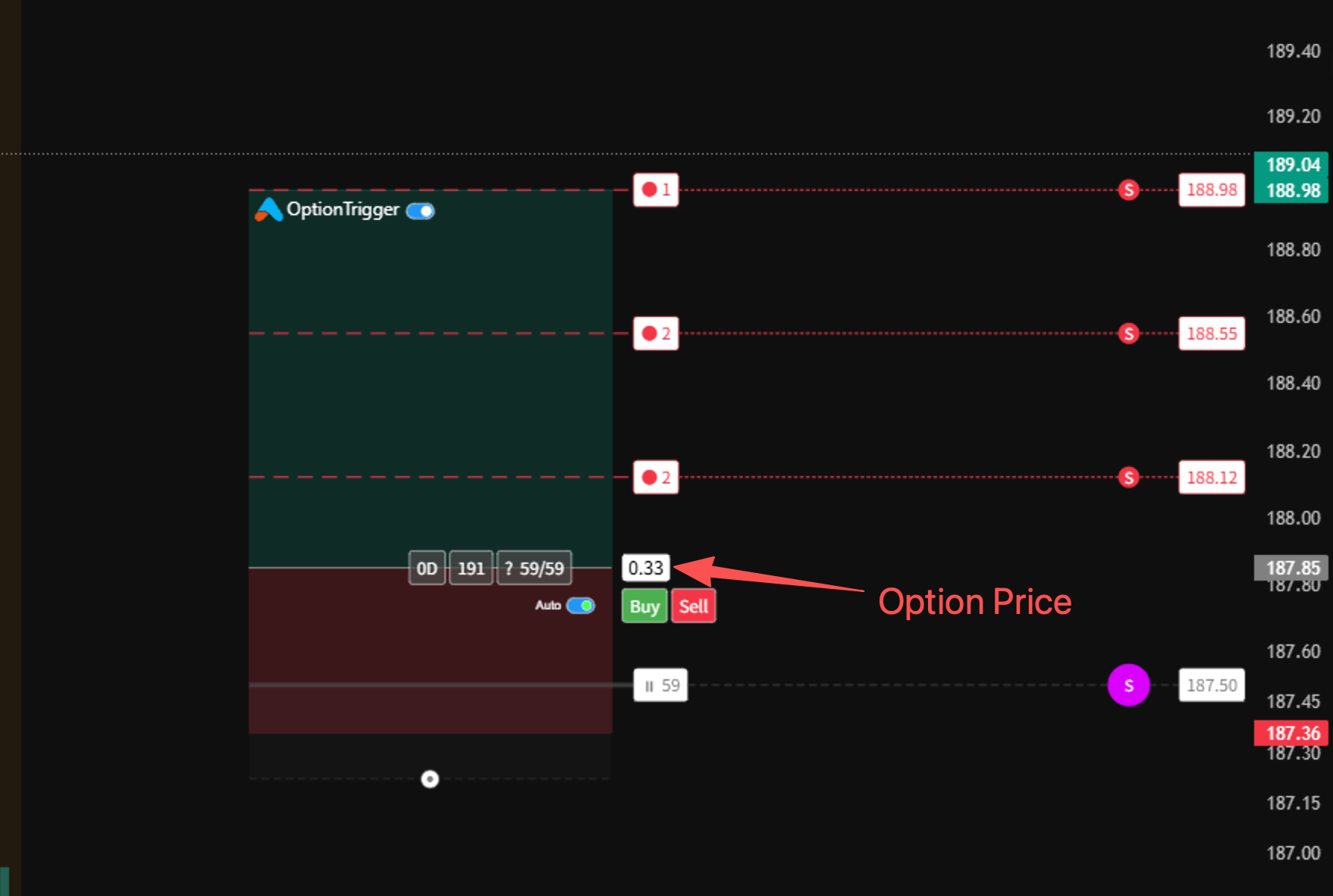
Free vs Premium: Free users see 15-minute delayed prices. Premium users get real-time prices.
Risk Information
The tool displays position size information:
- Position Size: Number of contracts
- Entry Price: Option premium at entry level
- AutoSize: Automatically select optimal contract based on predefined amount

Tool States
Position tools have different visual states to indicate their status:
| State | Appearance | Description |
|---|---|---|
| Pending | Gray | Order submitted, waiting to fill |
| Filled | Green border | Position is open and live |

Interacting with Position Tools
Opening the Order Panel
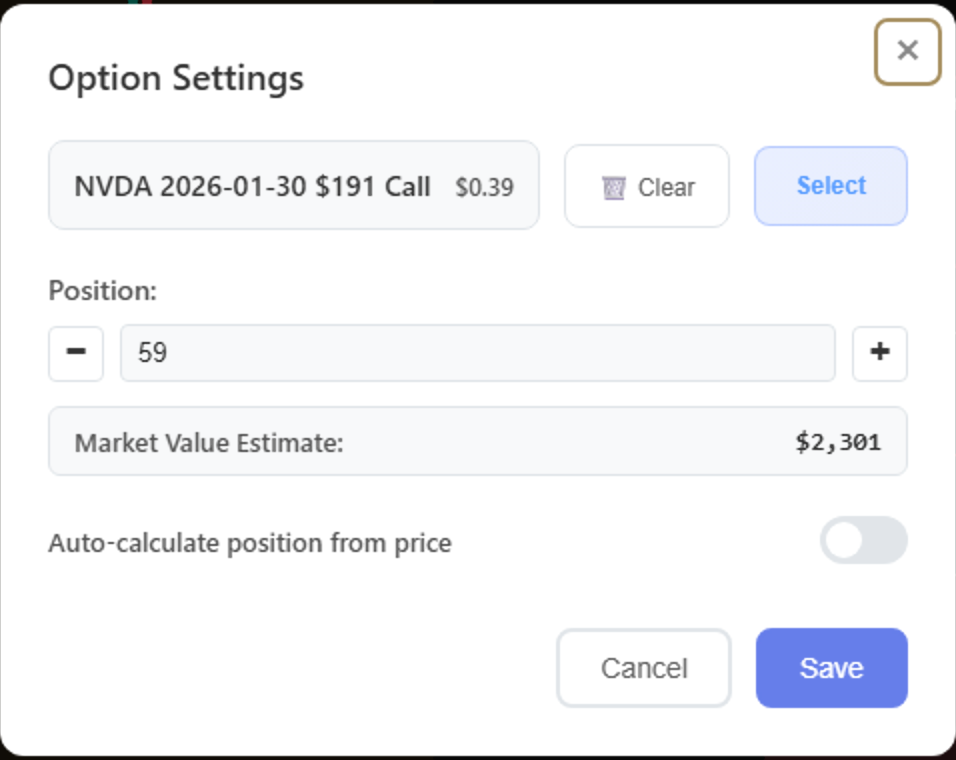
Click on the Entry Circle to open the order configuration panel where you can:
- Select option contract (expiration, strike)
- Set quantity
- Toggle Market / Limit (and Mid / Aggr / Pass when limit) on the order panel for this entry
- Place the order
Global defaults for Entry, TP, SL, and Close live under Settings → Trading → Order Mode — Market and Limit Order Modes.
Modifying Levels
Drag any line to adjust its price level:
- Entry Line: Move your entry price
- TP Lines: Adjust take profit targets
- SL Line: Change stop loss level
All option prices update in real-time as you drag.
Adding Take Profit Levels
Right-click on the tool and select Add Take Profit to add additional TP targets. See Multi-Level Take Profit for details.
Deleting a Tool
To remove a position tool:
- Click on the tool to select it
- Press
Deletekey, or - Right-click and select Remove
Best Practices
Entry Placement
- Place entries at key support/resistance levels
- Consider Limit + Mid for entry when the spread is wide — Order Mode guide
- Account for spread when setting entry prices
Risk Management
- Always set a stop loss before placing orders
- Use the risk calculator to size positions appropriately
- Never risk more than you can afford to lose
Important: The position tool is a planning aid. Always verify order details before execution.
Next Steps
Now that you understand the position tools, explore these related features:
| Feature | Description |
|---|---|
| Multi-Level Take Profit | Add multiple TP targets |
| Stop-Loss Modes | Choose your SL strategy |
| Placing Your First Order | Execute trades |
| AutoSize Feature | Smart contract selection |
- Trade Options on TradingView — brokers, tools, workflows
- Options Trading Automation Playbook — webhooks vs chart-native execution
- IBKR + TradingView for Options — permissions, TWS, troubleshooting
Tip: Practice with paper trading to master the tools before trading live.