Multi-Level Take Profit
Learn how to set up multiple take profit targets with custom close percentages for better profit management
Multi-Level Take Profit allows you to set multiple profit targets for a single trade, each with its own close percentage. This helps you lock in profits progressively while letting winners run.
Available to: All users (Free and Premium)
Why Use Multiple Take Profits?
Traditional single-target exits force an all-or-nothing decision. Multi-level TP solves this by:
- Locking in partial profits at conservative targets
- Letting remaining position run to higher targets
- Reducing emotional decision-making during trades
- Improving overall risk-adjusted returns
How It Works
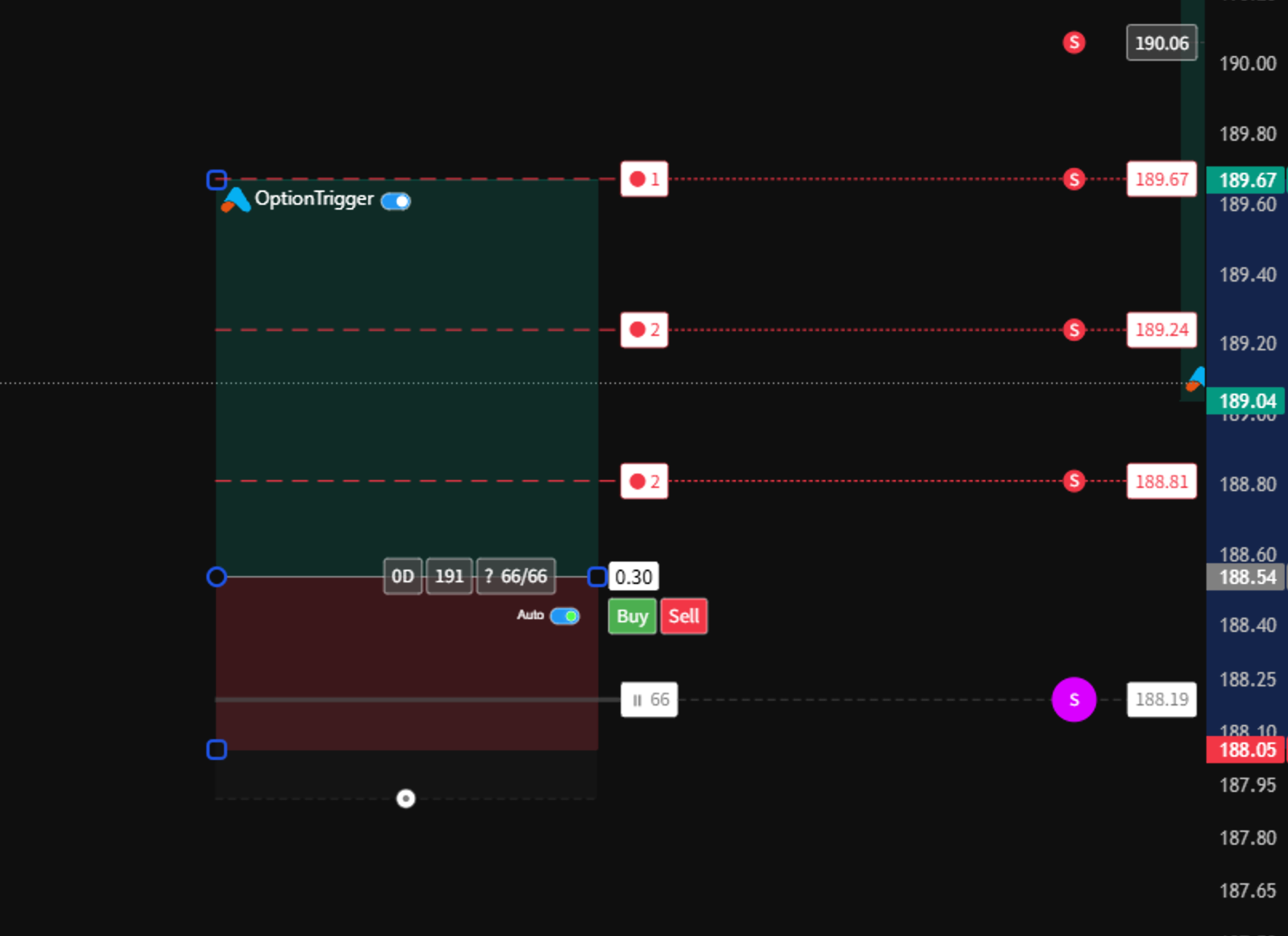
Each TP level has three settings:
- Price Level: The target price for this TP
- Close Percentage: How much of the position to close at this level
- Order Mode: Market or Limit, plus Mid / Aggressive / Passive when limit (overrides global TP default for that level)
Example: A 3-level TP setup:
| Level | Price | Close % | Cumulative |
|---|---|---|---|
| TP1 | $105 | 33% | 33% closed |
| TP2 | $110 | 33% | 66% closed |
| TP3 | $120 | 34% | 100% closed |
Adding Take Profit Levels
Create a Position Tool
First, create a Long or Short position tool on your chart. By default, it comes with one TP level.
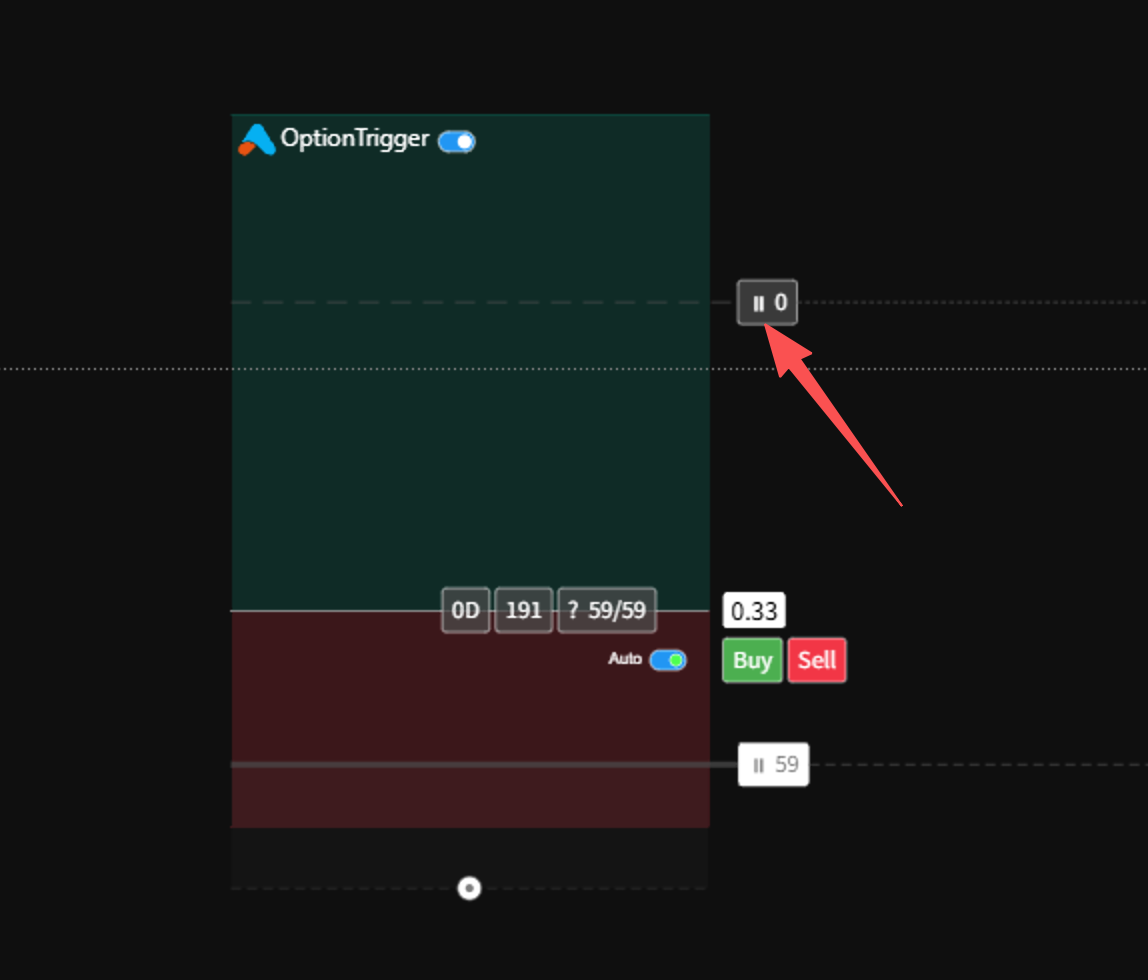
Add Additional TP Levels
Right-click on the position tool and select Add Take Profit, or click the + button near the existing TP line.
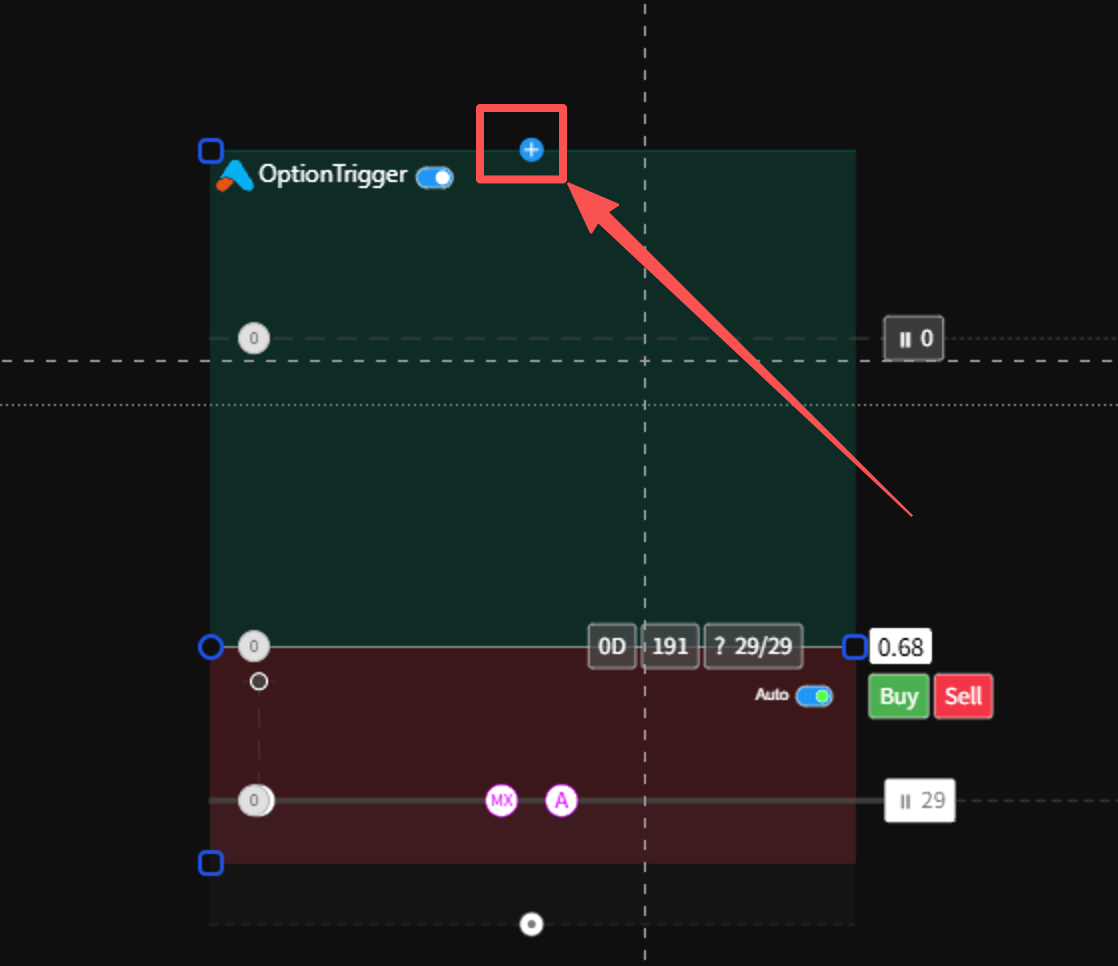
Position the New TP
Drag the new TP line to your desired price level. Repeat to add more levels as needed.
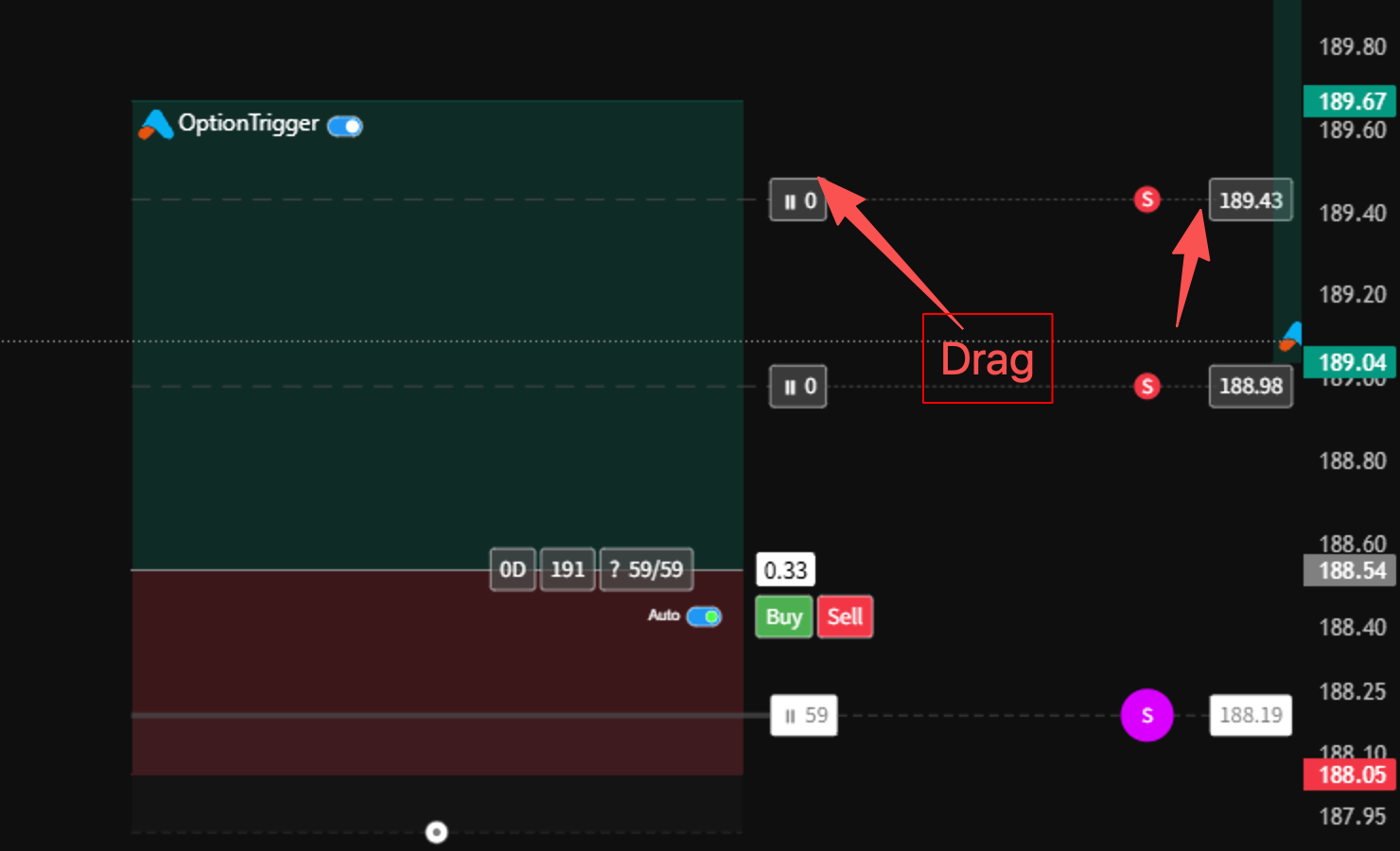
No Limit: You can add unlimited TP levels to match your trading strategy.
Setting Close Percentages
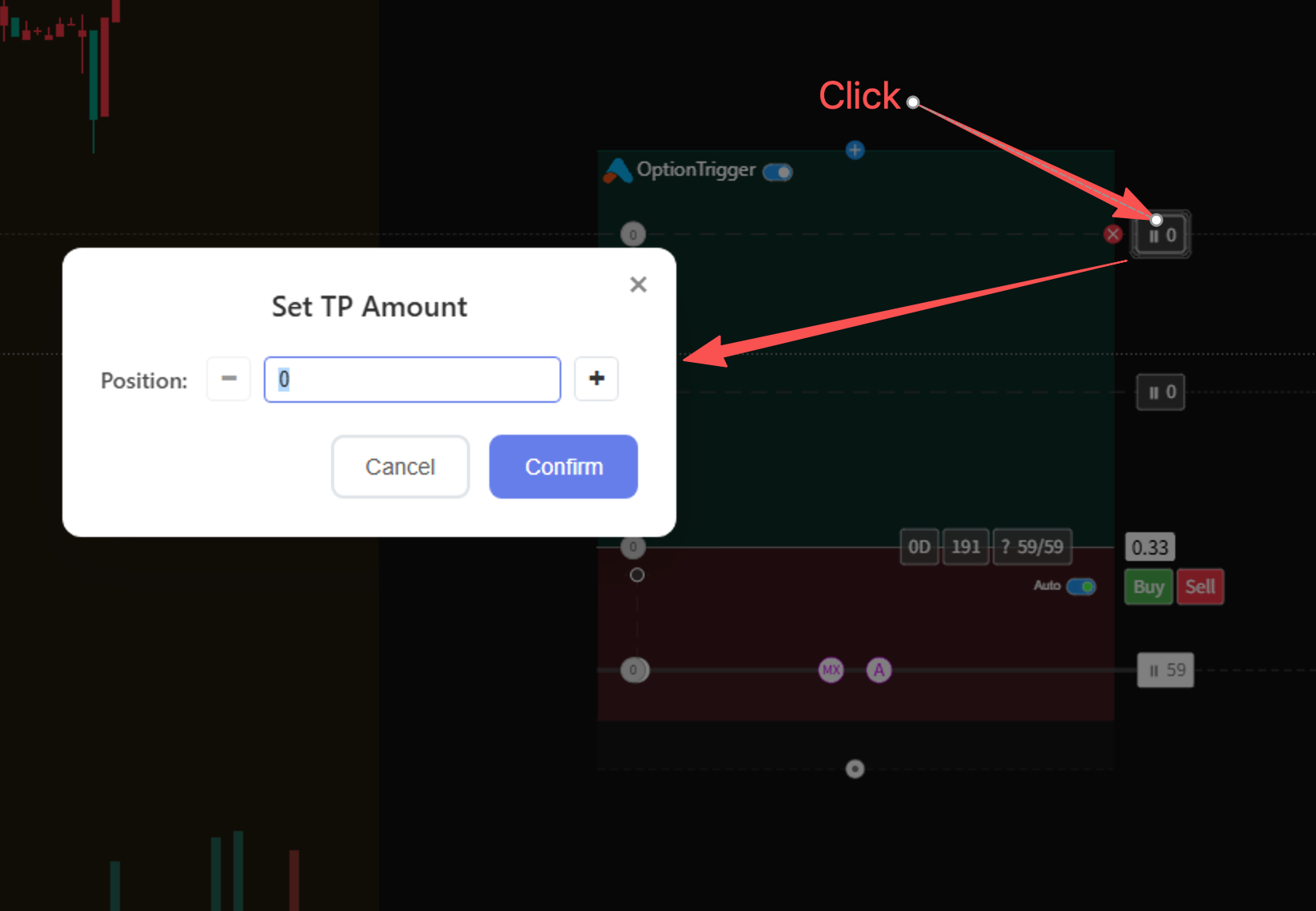
Adjust Close Percentage
Use the slider or input field to set what percentage of your position to close at this level.

Set TP Order Mode (optional)
In the same panel, choose Market or Limit for this TP leg. Limit mode exposes Mid, Aggressive, or Passive pricing from live bid/ask.
Global default: Settings → Trading → Order Mode → Take Profit. Per-level settings win for that TP only.
Important: Total close percentages across all TP levels should equal 100%. OptionTrigger will warn you if they don't add up correctly.
Common TP Strategies
Conservative (2 Levels)
| Level | Close % | Use Case |
|---|---|---|
| TP1 | 50% | Lock in half at first target |
| TP2 | 50% | Let rest run to extended target |
Balanced (3 Levels)
| Level | Close % | Use Case |
|---|---|---|
| TP1 | 33% | Quick profit lock |
| TP2 | 33% | Main target |
| TP3 | 34% | Extended runner |
Aggressive (4+ Levels)
| Level | Close % | Use Case |
|---|---|---|
| TP1 | 25% | Scalp profit |
| TP2 | 25% | Swing target |
| TP3 | 25% | Trend target |
| TP4 | 25% | Moon shot |
Removing TP Levels
To remove a TP level:
- Click on the TP line to select it
- Click the X button, or press
Delete
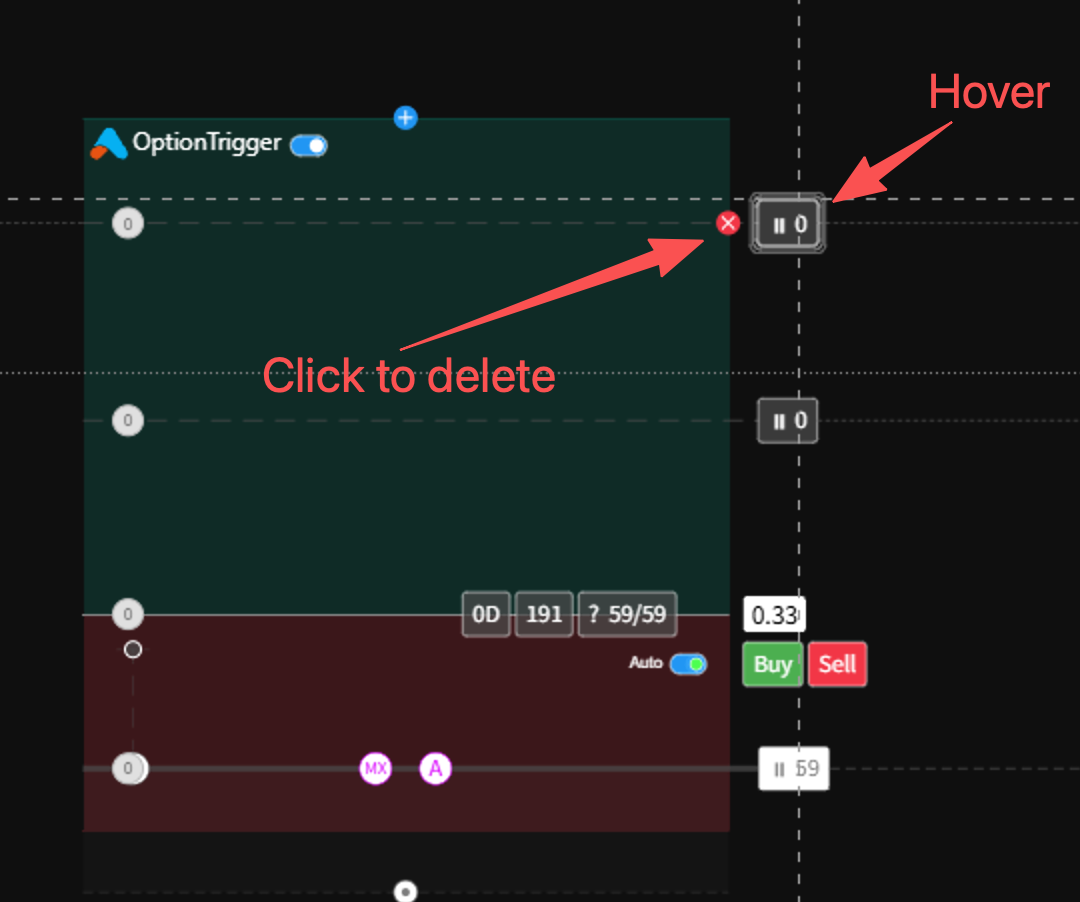
You must keep at least one TP level. The last TP cannot be deleted.
Tips for Effective Multi-TP
- Use technical levels: Place TPs at resistance, Fibonacci levels, or round numbers
- Consider volatility: Wider spacing for volatile assets
- Adjust for timeframe: Tighter TPs for scalping, wider for swing trades
- Review and adjust: Modify TPs as the trade develops
Next Steps
| Feature | Description |
|---|---|
| Stop-Loss Modes | Protect your downside |
| Long/Short Position Tools | Master the basics |
| Placing Your First Order | Execute your plan |
- Trade Options on TradingView — brokers, tools, workflows
- Options Trading Automation Playbook — webhooks vs chart-native execution
- IBKR + TradingView for Options — permissions, TWS, troubleshooting
Tip: Adjust your TP levels as the trade develops to lock in profits at different targets.